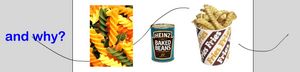
Using path animation
| Click on the beans layer so that it is highlighted. Select Insert and then New Layer. A new layer will appear above beans with its default name e.g. Layer 8. Double-click on the name and change it to question. |
 |
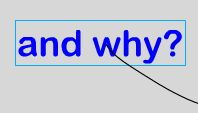
Click on frame 1 of the layer question and then select the text tool. Use the properties pane to make the text fill colour blue and the size 40. With the text tool still selected, click in the grey area to the left of the stage and enter and why? into the text box. Select the arrow tool and click on the text to select it. Drag it so that the words are all off the stage and about half way up. |
 |
Insert a Keyframe at frame 80 on the question layer and then click on that keyframe. Check that you are definitely working in the right layer and frame and then drag the text all the way off the right hand edge of the stage. Add a motion tween between frame 1 and frame 80 so that the words fly across the stage as the movie runs. |
|
The words will appear to fly behind objects in layers above its layer and in front of objects in layers below its layer. You can drag the question layer to a different place in the timeline order to change this effect. PowerPoint is quite good at this sort of thing so you are now going to make the words fly along a given path. |
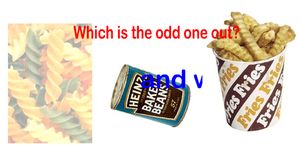 |
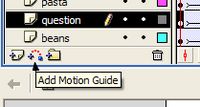
Click on frame 1 of the question layer. Click on the add motion guide button below the layers. A new layer appears above (and attached to) the question layer. |
 |
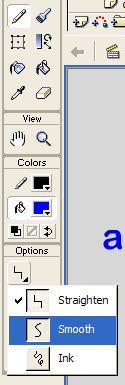
Click on frame 1 of the guide layer for the question layer. Select the pencil tool from the toolbox and in its options pane at the bottom of the toolbox, select smooth. Check that frame 1 of the guide layer is still selected and draw a wavy line on the stage between the place where the question text starts and where it ends up. It doesn't matter if you are a bit out, you can sort it out later.
|
 |
Click on frame 1 in the question layer. Select the arrow tool and use it to drag the text so that it sits on top of the start of the guide line. Do this at the other end at frame 80. When you try the movie, the text should follow the guide as it flies across. However, if it does not snap to the start of the line, it may just fly straight across. Keep on trying to get the text to latch on, it will after a few attempts. By the way, don't worry about the guide line, it is invisible in the finished movie. |
 |