Using tween properties
| Click on the beans tin and then look up to the timeline to check that you are working in the beans layer. Notice that you can achieve the same thing by clicking on frame 1 on the beans layer. The beans image will be selected. Now right-click on frame 40 in the beans layer and select Insert Keyframe from the menu. Place a Keyframe on frame 80 of the beans layer. |
|
Click back on frame 40 of the beans layer and then add a motion tween using the list control in the properties pane. You will see the tween arrow between frames 1 and 40. |
 |
Since the beans tin is in the same position on frame 1 and frame 40, the tween doesn't do anything yet. Check that you have still clicked on a frame inside the tween and then use the tween properties at the bottom to choose CW from the rotate control. This will rotate the object once clockwise between frame 1 and frame 40. |
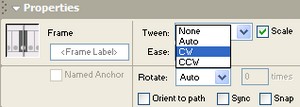 |
Now click on a frame between 40 and 80 in the beans layer and add a motion tween that rotates the tin anti-clockwise once as the movie plays. Remember to look for counter-clockwise or CCW! Move the play head (the red rectangle above the timeline) back to frame 1 and press enter to see the effect. If you want to rotate the shape more quickly, alter the number of times it rotates in the tween properties. |
|
