Playing your movie
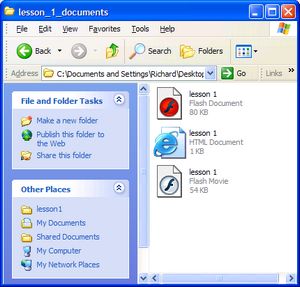
| When you have published the movie, you will probably have three sorts of files in your working folder. The Flash document is the working file containing all the layers and images and tweens. The Flash movie file is the published movie ready to play. The HTML document is a web page set to play the Flash movie file. Note that if you move the HTML document, you must move the Flash movie to the same location. You can rename the HTML file but you should leave the movie file with the same name to ensure that it loads into the web page. |
 |
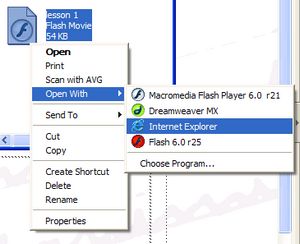
To play your movie, you could... Double-click on the web page. It will load the movie and set it running. Double-click on the movie file. If the flash player is installed, it will load the movie into its own player application and play it. Right-click on the movie file and select Open With and then Internet Explorer. This last method has the advantage over the first in that the movie will automatically resize when you resize the Internet Explorer window. |
 |
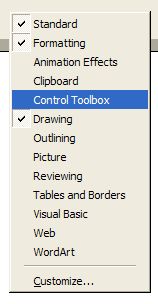
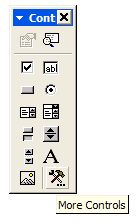
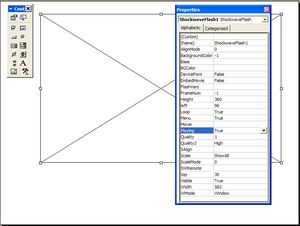
Alternatively, you could insert the movie into a PowerPoint slide. This means that the movie can be a part of a slideshow that brings together a variety of other objects such as images, text, movies and sounds. Start a new PowerPoint presentation. Create a blank slide. Open the Control Toolbox by right-clicking on the grey toolbar area and selecting it from the menu that appears. Click on the More Controls button on the toolbox and then scroll down the menu that appears until you find Shockwave Flash Object. Click on this and the mouse pointer will become a cross hair. Drag a box out on the slide, this is where the movie will be played. Right-click on the box that you drew out and select Properties from the menu that appears. Set the EmbedMovie property to True. This means that once you have run the slideshow once and then saved the movie, it will be a permanent part of the PowerPoint file. Enter the full path to the movie in the Movie property. The best way to do this is to run the movie in Internet Explorer and then highlight and copy the path from Explorer's address bar at the top. It can then be pasted into the property page. Run the slideshow and then save the file. Congratulations, you have created a Flash movie designed to look like a PowerPoint slide, and then put it on a PowerPoint slide! |
|