Changing the code
| Tidy up the stage so the objects are arranged appropriately and check that the boxes are the right size for the labels. If you need to change the size of a box, right-click on it and choose scale from the menu. The box will then have handles to drag it bigger or smaller. You have now done all the hard work. All that remains is to add some extra code to get the activity running. Test the movie to see how it looks. You should notice that two of the labels behave as expected as they already have the code referring to them. |
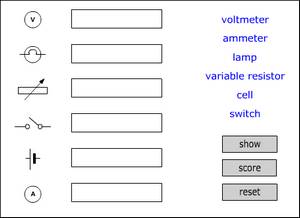 |
Click on frame 1 of the scripts layer and press F9 to open the actions pane. Check that you have selected Expert View so that you can scroll through the existing code and add things to it. The code is more or less prepared but needs to be modified to take into account the number of objects in the activity. The code below shows existing instructions in black and additions in blue. Text in green is intended as a helpful instruction, it must not be added to the code. |
|
// ** you will edit the code below this point ** // sets up an array for the word destinations (the boxes) //sets up array for the words // sets the reset position of all words to their starting position // sets up an array for the correct answers // ** you should not change any code below this point ** |
|
All you have to do now is make all the words draggable. Click on either word1 or word2 and open the actions pane. Copy the code (shown below) and then paste it into the actions pane for each of the other words. on (press) { on (release) { Test the movie and check if all the objects do what you expect. |
|
