Creating tooltips
This last alternative gets the labels to appear next to the mouse pointer when the user clicks on part of the image. Again, save the flash file under a different name (lesson2c). |
|
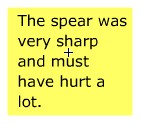
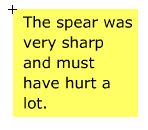
| The first step is to change the label symbols so that they stand out against the image. Open the Library using F11 and double-click on one of the labels (e.g. spearlabel) to edit it. Use the rectangle tool to draw a borderless box around the text filled with a suitable colour. When you select the tool, the colors section of the toolbox allows you to select stroke colour (border) and fill colour (inside fill). Use the mouse to drag a selection box around the text and rectangle and then nudge them both so that the top right hand corner is lined up with the + mark on the editor background. This sets the registration point of the symbol so its coordinates refer to its top corner and not its middle. Hold down the Ctrl and E to close the editor. |
|
Edit the other label symbols in the same way. You will find that you must then drag the labels back to their original positions. |
|
Next you need to alter the ActionScript attached to the hotspots so the labels pop up near to the cursor. Click on a hotspot and then press F9. Edit the on(rollOver) instruction as shown below.
The popup will only appear if the user clicks on a hotspot (so you might want to change the instruction on the movie). The x coordinate of the label (_x) is made the same as the mouse (_xmouse) with a small addition to offset it away from the cursor. The y coordinate is then altered in the same way. The label is then made visible. Leave the on(rollOut) alone. It will tidy up the screen, removing the popup once the user moves the mouse. Test the movie to check that this works before editing the ActionScript in the hotspots for all the other labels. |
|
If you run the movie and try the buttons, you will find a glitch. The labels appear wherever they last appeared. To tidy this up, click on a label and look at the properties pane. Note down the x: and y: properties to use as default positions. |
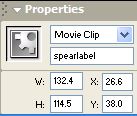 |
Now click on the show button and add two lines above the instruction for each label setting the x and y positions before they are made visible. e.g.
This should have the desired effect! |
|